
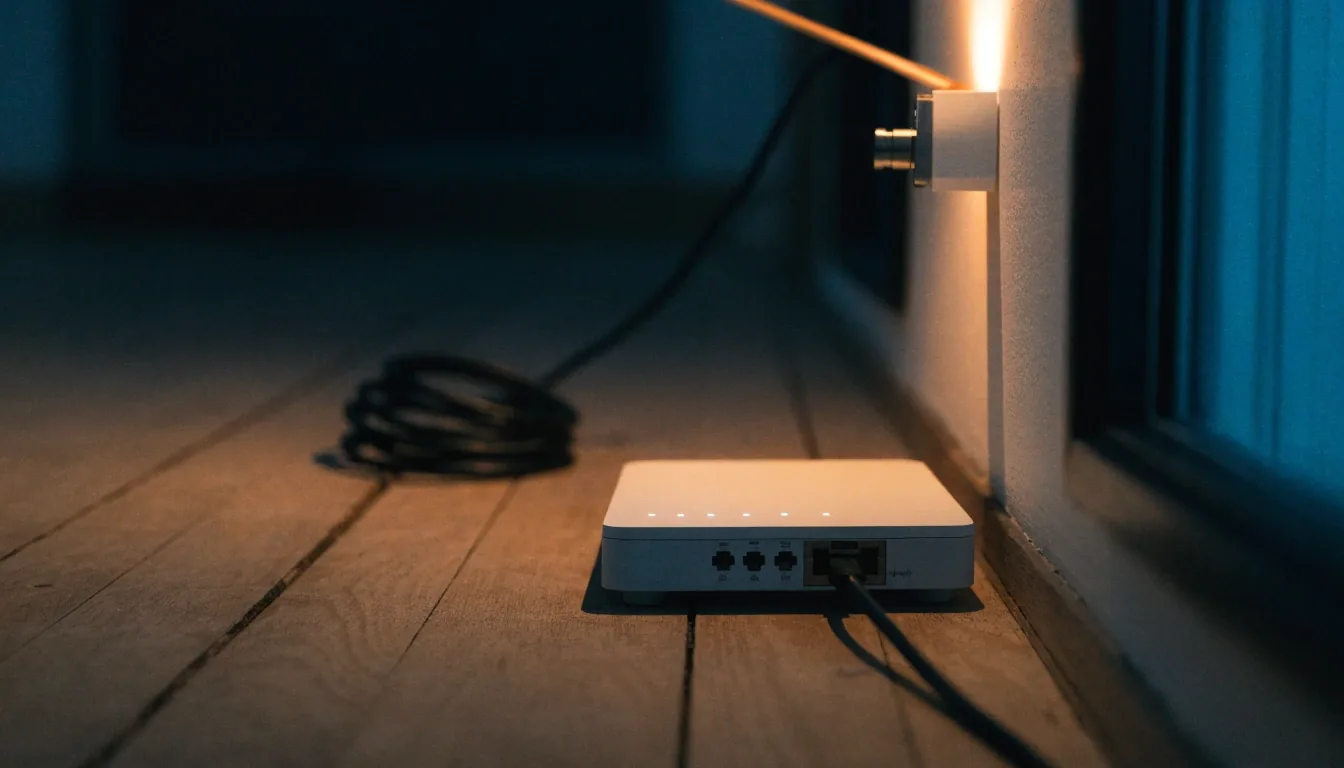
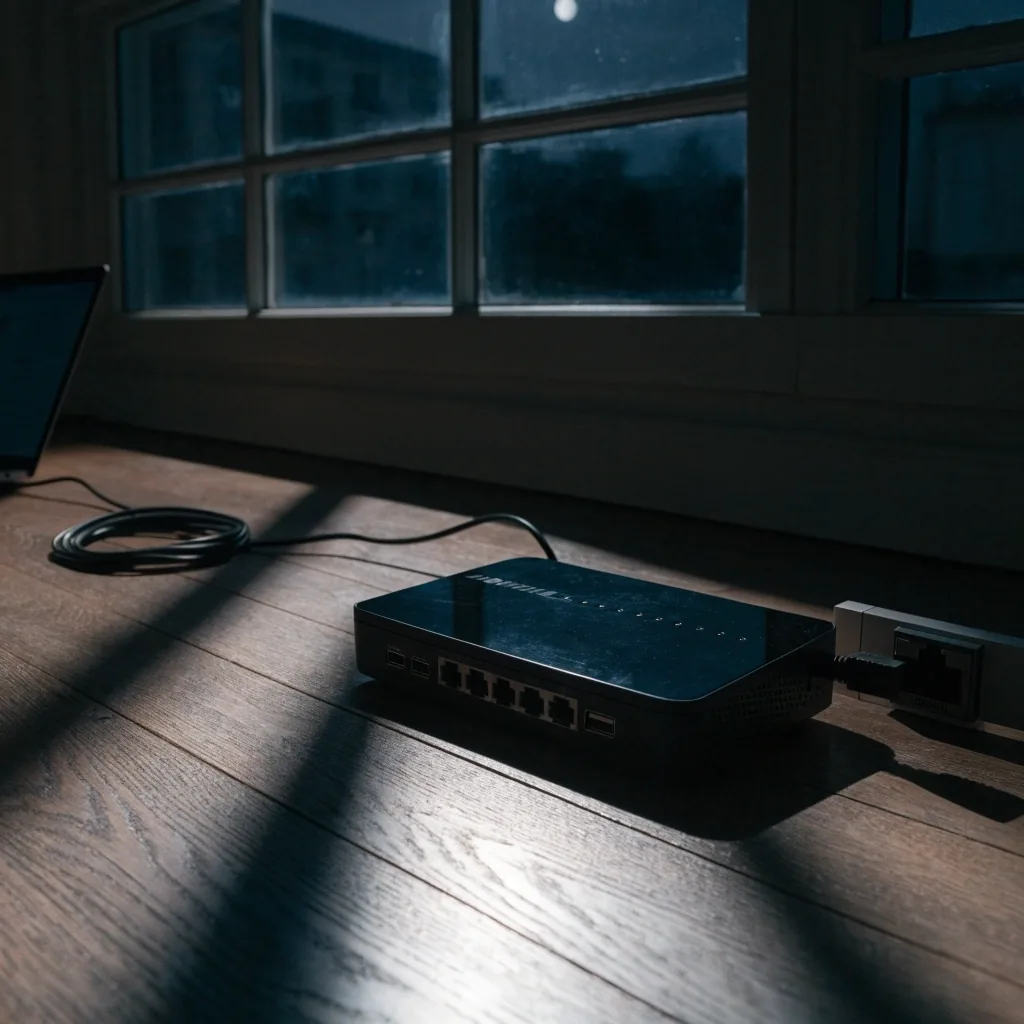
A wall jack, router and coiled Ethernet cable on a floor beside a window at night

Test procedure

How to run a reliable speed test

Most speed tests are run badly, and the number they produce gets blamed for a problem it did not measure. This guide covers the sequence that produces a result worth acting on.

Ten minutes the first time · two minutes after that

A reading is only as good as the conditions you measured it in

That is the whole argument for slowing down. A figure taken on a phone, in the corner of the house, at nine at night, while a cloud backup is uploading, is a measurement of your living room — not of the line your provider sold you.

The guide below breaks the process into five steps and closes with the mistakes that quietly skew results, the pattern that justifies opening a ticket, and the short log that makes that ticket work. If you would rather start from the numbers already on your screen, the companion guide explains each value in more depth.

Reading your speed results

Step one

Get the tool right

Use a testing service you can identify. Several report their server locations and methodology; some do not. Vermont's VT Speed Check, launched on 6 October 2026, is a public option that also contributes readings to an aggregated coverage map.

Whoever runs the tool, look for download, upload and latency reported as separate figures. Then check whether jitter or packet loss appear as well — those two tend to explain the complaints that bandwidth numbers cannot. A tool that shows you one big number and nothing behind it will not help you decide anything.

Shown

Download

How fast data arrives at your device.

Shown

Upload

How fast you send data out again.

Shown

Latency

Round-trip time, measured in milliseconds.

“Reported separately” is the phrase to hold on to. When a service merges the values into one score, you lose the ability to tell whether a slow evening is congestion on the downstream path or a saturated uplink.

Step two

Take your own network out of the equation

Test wired before you test wireless. Plug a laptop into the router with an Ethernet cable, disable other devices if you can, and close anything that syncs in the background — photo libraries, game launchers, cloud drives.

The comparison is the point. If the wired result lands close to your plan and the wireless result does not, the problem is inside your home rather than in the provider's network. That distinction decides who you call, and it is the single most useful thing this page can teach you.

Worth knowing: a wireless reading taken two rooms from the router measures your walls and your neighbours' traffic as much as it measures the line.

A laptop wired to a home router by Ethernet cable on an evening kitchen table

Wired first, wireless second — the gap between the two is where the answer usually sits.

Distance and timing change the story

Step three

Pick a server that is not next door

A speed test measures the path between your device and the server you chose, not the whole internet. A server in your own city will usually produce a flattering number and tell you little about how the connection performs against real destinations.

Test once against a nearby server and once against one a few hundred miles away. If the distant result collapses while the local one holds, routing or peering between networks is involved — which is a different problem, with a different escalation path, than a weak signal in your house.


Step four

Test more than once, at different hours

A single reading is an anecdote. Run the same test in the morning, in the evening, and once on a weekend, keeping the conditions as close to identical as you can. Evening congestion is the most common cause of a plan that looks fine at noon and unusable at nine.

Write the numbers down with the time and the connection type. A pattern is what a support agent can act on; one dramatic screenshot is what they have to ask you to reproduce.

A fibre riser and junction box on a utility pole against fog at night

Step five

Know what each number means

Download speed is how fast data arrives, and it is what most plans advertise. Upload speed is how fast you send — the figure that decides whether a video call stutters, whether backups finish overnight, and whether anything you publish goes out on time.

Latency is the round-trip time in milliseconds. Jitter is how much that latency varies, and high jitter breaks real-time audio even when bandwidth looks generous. A connection can pass a bandwidth check comfortably and still be unpleasant to talk over.

Download

Data arriving at your device. The headline figure on nearly every advertised tier.

Upload

Data leaving your device. Decides video calls, cloud backups and anything you publish.

Latency

The round trip, in milliseconds. Lower and steadier keeps conversations usable.

Jitter

How much latency moves around. High jitter breaks live audio on a fast line.

Common mistakes that skew results

None of these are catastrophic on their own. Each one produces a number that will mislead you if you act on it alone, and several of them are easy to catch once you know to look.

  • Testing over a VPN

    A VPN adds distance and encryption overhead to every packet. Your connection may be fine while the tunnel is slow.

  • Testing while a cloud backup runs

    You are measuring the backup. Pause it, or wait until the sync client says it is idle.

  • Testing on a phone at the edge of Wi-Fi range

    You are measuring your walls. Move next to the router, or better, use the cable.

  • Testing once and calling it done

    You are measuring one moment. Congestion, weather and neighbouring traffic all move through the day.

A quiet living room at night with a lamp, armchair and a router on a side table

Record it before you forget

Keep a simple log: date, time, wired or wireless, download, upload, latency. Three lines per test is enough.

When you escalate, that log does more work than any single screenshot, because it shows the problem repeats rather than being a one-off evening.

Date

Time

Link

Down

Latency

Date

Time

Wired

Down

Latency

When a bad result justifies a call

If a wired test against a nearby server, repeated at three different times, still lands well below your advertised tier, you have grounds for a support ticket.

Bring the times, the tool you used, and a note on whether the connection was wired. Providers respond differently to a documented pattern than to a vague complaint about slow internet — the first gives them something to trace, the second starts a script.

Bring one
The times you ran the test, with dates.
Bring two
The name of the tool and the server you tested against.
Bring three
Whether the connection was wired or wireless.

Questions that come up while testing

How long should I wait after plugging in the cable?

A few seconds is usually enough for the interface to negotiate, but give background applications a minute to settle. If a sync client is mid-upload, the first reading after plugging in will be lower than the connection deserves.

Is one speed test from a nearby server enough to judge my plan?

It is enough to confirm the line is alive. It is not enough to judge the plan against real destinations, because a nearby server measures the shortest path available. Pair it with a distant server and a second hour of the day before you draw a conclusion.

My bandwidth looks fine but calls still break up. What should I check?

Look at latency and jitter rather than download speed. High or unstable latency ruins real-time audio while leaving a bandwidth figure untouched. If those two are steady on a wired test, the trouble is most likely on the wireless path inside the house.

Should I test on the router's own app instead of a laptop?

Router-side tools have one real advantage: they measure without your devices in the path, which makes them useful for a clean baseline. For anything you will raise with a provider, a wired laptop test is easier to reproduce and easier to document consistently.

A residential street at night with lit windows and aerial cable strung between poles

Run it properly once, and you will only have to argue about it once

Ten minutes of preparation buys you a result that holds up in a support conversation. If you want the numbers explained in more depth before you start, the companion guide walks through download, upload, latency and jitter one at a time.

Prefer to read the desk's shorter update each week? The weekly digest collects new coverage on speed testing, spectrum policy and broadband infrastructure as it lands.

Questions about the method used on this page, or about how the desk sources its figures? The newsroom's editorial standards explain the approach, and the contact page is the way to reach us.